
Your Guide to the Best Budgaet PC Parts for 2025: Max Performance, Min Spend
Scoring cheap PC parts in 2025 is all about getting the most bang for your buck without sacrificing performance or future upgrade potential. This guide breaks down how to pick the best budget graphics cards, affordable CPUs, speedy DDR5 memory, and cost-effective SSDs. We’ll also dive into whether snagging refurbished components is a smart move. You’ll learn exactly what to look for, understand the price-to-performance sweet spots, and get step-by-step advice tailored for budget builds in 2025, keeping in mind trends like wider DDR5 availability and the growing need for more VRAM. We’ll highlight top-tier budget GPUs and CPUs perfect for 1080p and 1440p gaming, explain memory capacity and speed trade-offs, compare QLC and TLC NAND for budget SSDs, and provide a handy checklist for buying refurbished parts. Each section features concise, actionable tips and comparison tables to help you make smart choices, plus crucial compatibility checks to ensure your build comes together seamlessly.
What Are the Top Budget Graphics Cards for 2025?
For 2025, budget graphics cards are designed for gamers and creators who want solid 1080p performance and efficient power usage without breaking the bank. These entry-level and value-focused GPUs strike a balance between VRAM, PCIe interface, and price, aiming for smooth 1080p or capable entry-level 1440p gaming. VRAM is becoming increasingly important for longevity. When choosing, consider VRAM size, driver stability, and whether your power supply has the right connectors. We’ll walk you through smart buying strategies and compare the leading value GPUs to help you make the best choice.
To get the most out of your budget GPU, focus on minimum VRAM requirements, power supply compatibility, and consistent driver updates. Next, we’ll explore the strengths of the Intel Arc B580 and see how it stacks up against Nvidia and AMD options for everyday gaming.
Why the Intel Arc B580 Stands Out as a Top Budget GPU
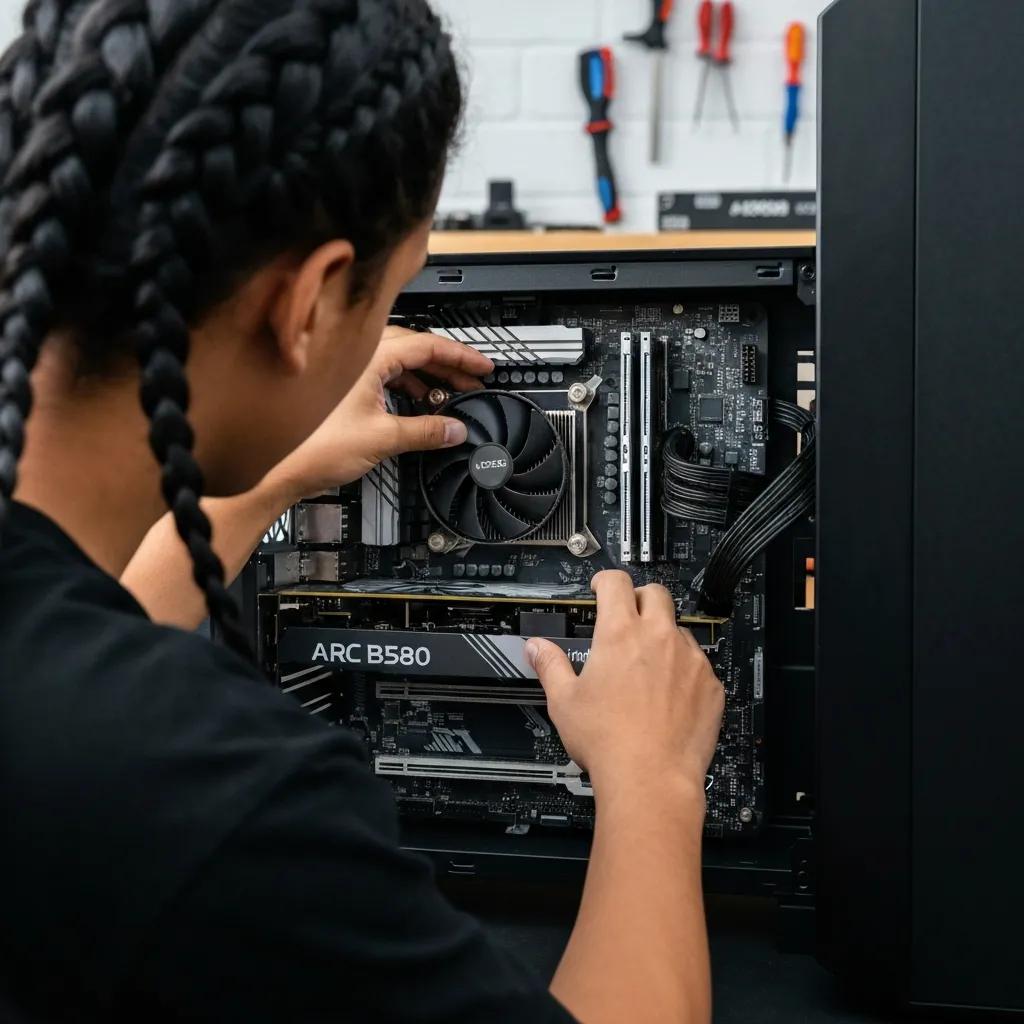
The Intel Arc B580 is a compelling entry-level GPU, especially thanks to its generous 12GB of VRAM at its price point. This means it can handle modern textures and keep your 1080p gaming future-proofed. It focuses on strong rasterization performance for the money, while also packing modern media and AI features. That extra VRAM is key for smoother texture streaming and better frame pacing in newer games. Its power draw is generally moderate, making it a good fit for more affordable power supplies. Just be sure to check the latest driver status for optimal performance and long-term support. If you’re aiming for consistent 1080p gaming with plenty of VRAM for texture-heavy titles, the Arc B580 is a smart pick. If specific vendor features are crucial for your workflow, weigh those against what competitors offer.
Nvidia RTX 4060 vs. AMD Radeon RX 7600: Which Budget GPU Reigns Supreme?
The Nvidia RTX 4060 and AMD Radeon RX 7600 are key players in the budget gaming arena, each with its own advantages. The RTX 4060 often leads in ray tracing performance and boasts Nvidia’s DLSS upscaling technology. The RX 7600, on the other hand, frequently offers better raw performance per dollar and sometimes comes with more VRAM. When comparing, look at VRAM capacity, ray-tracing capabilities, and power efficiency. DLSS can significantly boost frame rates in ray-traced games on the Nvidia side, while AMD’s FSR is more universally compatible but can have different visual results. Both are fantastic for competitive 1080p gaming. For games that demand more VRAM or if you plan on heavy modding, prioritize the card with more memory. Ultimately, your choice comes down to whether you prefer Nvidia’s ecosystem of features or AMD’s strong price-to-performance ratio in traditional rasterization.
To help you decide, here’s a quick comparison of these popular budget GPUs:
This table highlights the key specs that matter for 1080p and 1440p gaming, along with power and price considerations for budget builders. Use it to narrow down your options based on your performance goals and power supply, then move on to CPUs to complete your platform choice.
- Essential GPU Buying Tips for Budget Builds:
Prioritize VRAM: Aim for at least 8GB, ideally 12GB, for 2025 gaming, especially with mods.
Check PSU Compatibility: Ensure your power supply has the right connectors and enough wattage.
Look for Solid Driver Support: Opt for GPUs with a history of regular, stable driver updates.
These tips will help you make a quicker decision and avoid unexpected issues when putting your budget PC together.
Which Affordable Gaming CPUs Deliver the Best Value in 2025?

Affordable gaming CPUs provide the processing muscle needed for today’s games and multitasking without demanding a costly motherboard or RAM upgrade. In 2025, value CPUs balance core/thread counts, instruction-per-clock (IPC) performance, and overall platform cost—often dictated by the motherboard socket and chipset. Deciding between older and newer generations often comes down to the total platform expense, including motherboard features and RAM type, which determines if DDR4 or DDR5 makes more sense. Here, we’ll cover the top budget CPU contenders and offer a compatibility-focused comparison to guide your platform decisions.
Start by identifying your primary use case: what games do you play, and how much multitasking do you do? Core and thread counts, along with IPC, impact gaming and streaming performance differently. The following sections will explain why two popular choices are excellent options and how socket compatibility plays a role in future upgrades.
Why the Intel Core i5-12400F and AMD Ryzen 5 7600 Are Great for Budget Builds
The Intel Core i5-12400F and AMD Ryzen 5 7600 are standout choices for price-to-performance, offering strong single-core speed for gaming and enough multi-core power for background tasks. The i5-12400F often pairs with more affordable motherboards and DDR4 RAM, lowering the initial investment. The Ryzen 5 7600, however, boasts superior IPC and DDR5 support, offering better long-term performance. Always factor in the total platform cost: the motherboard chipset and RAM generation can sometimes negate CPU savings if you need to switch memory types. For pure 1080p gaming, both are excellent, but your upgrade path and memory choice will influence long-term value.
How CPU Socket Compatibility Impacts Your Budget PC Upgrade Path
CPU socket compatibility is crucial for future upgrades, as it determines whether you can swap CPUs without replacing your motherboard or RAM. Different sockets often require specific chipsets and RAM generations, which can significantly increase upgrade costs. Always check your motherboard’s BIOS support and chipset features before buying a CPU, as some budget boards might need updates for newer processors or might limit RAM speeds. Use a compatibility checklist to compare socket, chipset, and memory support. Weigh the cost of a new motherboard and RAM against buying a slightly more powerful CPU now. Planning for socket longevity keeps your upgrade options open and prevents wasted money.
- Verify Socket and Chipset Match: Ensure your motherboard officially supports the CPU you choose.
- Check Supported Memory Type: Confirm if your board uses DDR4 or DDR5 and if it fits your budget.
- Calculate Total Platform Cost: Add motherboard and RAM prices to get the true upgrade expense.
These checks help you avoid unexpected costs and align your CPU choice with your overall budget goals.
| CPU Model | Cores / Threads | Socket | TDP | Integrated Graphics | Price Range |
|---|---|---|---|---|---|
| Intel Core i5-12400F | 6 / 12 | LGA1700 | 65W | No | Budget-friendly |
| AMD Ryzen 5 7600 | 6 / 12 | AM5 | 65W | No | Great value |
| Value Alternative | 4–6 / 8–12 | Varies | 35–65W | Sometimes | Lower budget |
Use this table to match your motherboard choice with the right CPU socket and memory support, then select RAM that balances cost and future-proofing.
Choosing Affordable DDR5 RAM for Gaming in 2025
When selecting budget DDR5 RAM for gaming in 2025, you’ll want to balance capacity, speed, and CAS latency while keeping platform compatibility and price per gigabyte in mind. DDR5 is becoming more mainstream, offering higher speeds and better channel architecture. The sweet spot for value is where capacity and latency provide noticeable gaming improvements without a hefty price tag. Many gamers face the decision between a 32GB DDR5-6000 CL30 kit or a more budget-friendly 16GB option. We’ll guide you through configuration options and help you decide if DDR5 is the right choice, or if sticking with DDR4 makes more sense.
First, define your needs: are you primarily gaming at 1080p, doing content creation, or heavy multitasking? Each scenario impacts RAM requirements. The following sections will recommend optimal capacity and speed pairings and weigh the pros and cons of DDR4 versus DDR5 for budget-conscious builders.
What's the Sweet Spot for RAM Capacity and Speed in Budget Gaming PCs?
For 2025 gaming, 16GB of RAM is still a solid baseline, but 32GB is recommended for modded games, streaming, or heavy multitasking. DDR5 kits around 6000MHz with CL30 latency offer a great balance of speed and responsiveness for gaming. RAM capacity directly impacts multitasking and how smoothly textures load, while speed and CAS latency influence frame times and minimum framerates. Essentially, faster DDR5 means more bandwidth, which helps reduce stuttering with large game assets. If your budget allows, a 32GB DDR5-6000 CL30 kit is a great future-proof investment. However, 16GB DDR5 or even high-quality DDR4 kits can still deliver excellent 1080p gaming performance at a lower overall platform cost.
DDR4 vs. DDR5 RAM: Which is Better for Affordable Gaming Builds?
The choice between DDR4 and DDR5 often hinges on your motherboard and CPU platform costs. DDR4 typically offers a lower entry price if your chosen CPU and motherboard support it. DDR5, on the other hand, provides better long-term headroom and bandwidth, which is beneficial for memory-intensive tasks and future games. If budget is tight and your platform supports DDR4, a well-chosen 16GB or 32GB DDR4 kit can be the most cost-effective option, especially for pure gaming. If you can stretch your budget slightly, DDR5 enhances future compatibility and benefits applications that scale with memory bandwidth. Consider your upgrade path and resale value: DDR5-equipped systems tend to stay relevant longer.
- Identify Your Use Case: Gaming only, streaming, or content creation require different RAM capacities.
- Match RAM to Your Platform: Ensure your motherboard supports the DDR generation and speeds you’re targeting.
- Balance Speed, Latency, and Cost: Aim for mid-to-high speeds with reasonable CAS latency for the best value.
These steps will help you select RAM that complements your CPU and motherboard while optimizing for both price and longevity.
Best Inexpensive NVMe and SATA SSDs for Budget PCs
When looking for inexpensive SSDs in 2025, you’ll find both NVMe PCIe 4.0 and SATA options, each with its own trade-offs in performance, endurance, and price per gigabyte. PCIe 4.0 NVMe SSDs can offer fantastic performance for the money when on sale, speeding up game loads and large file transfers. SATA SSDs remain a solid, cost-effective choice for mass storage or secondary drives. Understanding the differences between QLC and TLC NAND flash will help you determine if a low-cost SSD meets your endurance and workload needs. We’ll break down the value of PCIe 4.0 and NAND types, and provide a comparison table of representative budget drives.
PCIe 4.0’s increased bandwidth means faster sequential read/write speeds, but you need compatible motherboard and CPU hardware to unlock its full potential. If your system doesn’t support PCIe 4.0, a PCIe 3.0 NVMe drive might be a more sensible choice. We’ll explore the practical value and NAND trade-offs next.
How PCIe 4.0 NVMe SSDs Deliver Value in Budget Builds
PCIe 4.0 NVMe SSDs offer significantly higher sequential throughput and better performance for large file transfers and loading times compared to SATA drives. For many budget builds, the boost in responsiveness alone justifies the slightly higher cost. The value proposition is highly dependent on your platform, as PCIe 4.0 requires compatible motherboard and CPU support to reach peak speeds. If your hardware doesn’t support it, a PCIe 3.0 NVMe drive often performs just as well in real-world scenarios. For gamers focused on faster load times and quicker installations, PCIe 4.0 provides tangible benefits, though everyday desktop use might see diminishing returns. Evaluate the price per gigabyte and endurance ratings to see if the performance boost is worth the extra investment for your budget build.
QLC vs. TLC NAND: Understanding the Differences in Cheap SSDs
QLC NAND offers higher storage density and a lower price per gigabyte, making it appealing for budget SSDs. However, it comes at the cost of endurance and sustained write performance compared to TLC NAND. TLC remains the preferred choice for OS drives and workloads involving heavy writing. QLC is best suited for read-heavy tasks like game libraries and bulk storage where cost is the primary concern. TLC provides more consistent performance during sustained writes and typically boasts higher Terabytes Written (TBW) ratings. For your main NVMe boot drive, opt for TLC if your budget allows. Consider QLC for an inexpensive secondary drive if you’re comfortable with its endurance limitations. Balancing price per gigabyte against TBW and sustained performance will help you choose the right NAND type for your budget build.
Here’s a quick comparison of SSDs to help you weigh interface, NAND type, and endurance for your value-conscious build:
| Model | Interface | NAND Type | Seq Read / Write | Endurance (TBW) | Price per GB |
|---|---|---|---|---|---|
| Budget NVMe Example A | PCIe 4.0 NVMe | TLC | 5000 / 4000 MB/s | Moderate | Low–Medium |
| Budget SATA Example B | SATA III | QLC | 550 / 520 MB/s | Low | Very Low |
| Value NVMe Example C | PCIe 3.0 NVMe | TLC/QLC | 3500 / 3000 MB/s | Moderate/Low | Low |
- Prioritize Endurance for OS Drives: Choose TLC for your boot drive if your budget permits.
- Match Interface to Your Platform: Ensure your motherboard supports PCIe 4.0 to take full advantage of faster NVMe drives.
- Compare Price per GB Wisely: Balance the cost savings of QLC against your long-term reliability needs.
These considerations will help ensure your storage choice aligns with both your performance expectations and budget.
Are Refurbished PC Components a Safe and Cost-Effective Bet?
Refurbished PC components can offer significant savings, often between 20% and 70%, but they come with varying warranty lengths and unknown usage histories, which can introduce risk unless you’re careful. Some parts, like storage and GPUs, carry different refurbished risks; SSDs can be riskier if their endurance is already low, while CPUs, which show fewer signs of wear, are often safer bets. A smart approach involves prioritizing certified refurbishers, confirming return policies, and thoroughly testing components upon arrival. We’ll break down the pros and cons for each component type and offer guidance on finding reliable refurbished sellers and what to look for before you buy.
Refurbishment can be a great way to save money, especially when paired with a solid testing and warranty plan. The following sections will detail component-specific trade-offs and provide a checklist for vetting sellers to minimize buyer risk.
Pros and Cons of Buying Refurbished GPUs, CPUs, and SSDs
Buying refurbished GPUs can lead to substantial savings, but concerns about their thermal history and potential wear from mining are valid. Refurbished CPUs often represent excellent value when sourced from reputable refurbishers with testing records. For SSDs, pay close attention to TBW (Terabytes Written) ratings and warranty terms to ensure a decent lifespan. The main advantages are lower upfront costs and access to higher-tier hardware. The downsides include shorter or nonexistent warranties, unknown usage history, and the potential for hidden defects. To mitigate these risks, ask for test logs, favor certified refurbishers, and choose sellers with clear return policies. Weigh the potential savings against the cost of replacement and only consider refurbished parts when the vendor offers verifiable testing and return protections.
Where to Find Reliable Sellers for Refurbished PC Parts Online
Look for refurbished parts from certified refurbishers and marketplaces that offer seller guarantees and return options. Focus on sellers who provide documented testing procedures, clear warranty terms, and positive reviews that mention successful returns or exchanges. Key indicators of reliability include time-limited warranties, transparent descriptions of the refurbishment process, and platform protections that facilitate easy dispute resolution if a part arrives faulty. Avoid listings with vague descriptions or no return policy. If possible, request performance logs or photos of test benches before making a purchase. This approach helps ensure you’re making a lower-risk purchase and increases the likelihood that your refurbished savings translate into long-term value.
- Favor Certified Refurbishers with Warranties: A warranty is your most crucial safeguard against risk.
- Request Proof of Testing: Ask for burn-in test results or SMART data where applicable before buying.
- Confirm the Return Policy: Make sure the seller offers a clear window for returning faulty parts.
Following these steps significantly reduces the chance that a seemingly great deal turns into an expensive problem.
How to Build a Cheap Gaming PC: Your Step-by-Step Guide for 2025 Budget Parts
Building a budget gaming PC in 2025 starts with smart planning: define your performance goals and maximum spend, then move through component selection and compatibility checks before you even think about assembly. The process involves setting your target resolution and framerate, choosing a CPU and GPU that meet those needs, selecting a motherboard and RAM that are compatible, and picking a power supply with enough headroom. During assembly, focus on clean cable management, sensible airflow, and a final round of compatibility and stress testing to ensure stability. We’ll cover recommended motherboards and PSUs for value builds and explain how to ensure proper airflow and clearance to prevent thermal throttling.
Begin by mapping out your expectations—whether it’s 1080p or 1440p gaming, esports titles, or demanding AAA games—as your CPU and GPU choices must align with these targets. The following sections will offer specific advice on motherboards, PSUs, and case airflow.
Best Budget Motherboards and Power Supplies for Value Builds
When choosing budget motherboards, prioritize a stable VRM (Voltage Regulator Module), essential expansion slots, and necessary connectivity, while skipping unnecessary premium features that drive up the cost. Opt for chipsets that complement your CPU without forcing you to pay for extras you won’t use. For power supplies, stick to reputable brands with proper certifications (like 80 Plus Bronze or better), sufficient wattage to handle peak GPU loads, and essential safety protections (OVP, OCP). Avoid unbranded units that could risk damaging your components. A solid value build pairs a modest B-series or equivalent motherboard with a quality 450W–650W PSU, sized appropriately for your GPU and CPU, ensuring safe operation and some upgrade headroom. For cost savings, you might select a board with fewer high-end features but a robust VRM, or opt for a non-modular PSU if cable management isn’t a top priority.
Ensuring Compatibility and Optimal Airflow in Cheap PC Cases
Selecting a case for a budget build requires careful consideration of GPU length, CPU cooler height, and front intake fan options to achieve effective airflow without resorting to expensive cooling solutions. Measure your GPU and CPU cooler dimensions before buying and choose a case that supports at least two intake fans and one exhaust fan to create positive airflow. Cable management channels and dust filters on intakes can further improve thermal efficiency and simplify maintenance. For affordable cooling boosts, consider adding an extra case fan or upgrading the stock CPU cooler if thermals become an issue. Ensuring proper airflow reduces thermal throttling and extends component lifespan, making it crucial to match your case, cooler, and PSU choices for reliable, quiet operation.
- Verify Component Clearances: Double-check that your GPU length and CPU cooler height fit comfortably in the case.
- Ensure PSU Headroom: Select a PSU with 20–30% more wattage than your estimated peak load.
- Perform Stress Tests: Run CPU and GPU stress tests to confirm thermals and stability before regular use.
These steps will help you complete a budget build that performs reliably without any surprise expenses.
This guide has covered the essential decisions for budget graphics cards, affordable CPUs, DDR5 memory, inexpensive SSDs, the risks and rewards of refurbished components, and a practical assembly checklist for building a cheap gaming PC in 2025. Use the included tables and checklists to streamline your component selection process, and follow the compatibility advice to maximize the long-term value of your budget build.
Frequently Asked Questions
What should I look for when buying refurbished PC components?
When buying refurbished PC components, it’s crucial to check the seller’s reputation, the warranty period, and the overall condition of the item. Seek out certified refurbishers who provide testing documentation and clear return policies. Also, consider the component’s usage history, especially for GPUs and SSDs, as these can have different risk profiles. Always prioritize components with a solid warranty and ask for performance logs to ensure you’re making a sound investment.
How can I tell if a budget CPU is good enough for gaming?
To determine if a budget CPU is suitable for gaming, examine its core and thread count, along with its instructions per clock (IPC) performance. For most modern games, a CPU with at least 4 cores and 8 threads is recommended. Also, ensure the CPU is compatible with your motherboard and RAM type, as these factors significantly impact overall performance. Benchmarking data and user reviews can offer valuable insights into real-world gaming performance.
What are the benefits of using DDR5 RAM over DDR4 for gaming?
DDR5 RAM offers notable advantages over DDR4, particularly in speed and bandwidth. With higher peak speeds and an improved channel architecture, DDR5 can boost performance in memory-intensive applications and better prepare your system for future games. DDR5 also typically supports larger capacities, which is beneficial for multitasking and gaming with mods. However, the decision between DDR4 and DDR5 should also take your budget and motherboard compatibility into account.
How do I select the right power supply for my budget PC build?
Choosing the right power supply (PSU) for your budget PC build involves several key factors. First, ensure the PSU has sufficient wattage to power your components, ideally with 20-30% headroom above typical load. Look for reputable brands with at least an 80 Plus Bronze certification for efficiency. Additionally, check the PSU’s connectors for compatibility with your motherboard and GPU. A modular PSU can simplify cable management, though it might come at a higher cost.
What are the main differences between NVMe and SATA SSDs for budget builds?
The primary distinctions between NVMe and SATA SSDs lie in their performance and interface. NVMe SSDs, especially PCIe 4.0 models, offer significantly faster read and write speeds than SATA SSDs, making them ideal for gaming and demanding tasks. SATA SSDs are generally more affordable and still provide a substantial speed improvement over traditional hard drives. For budget builds, the choice depends on your performance needs and motherboard compatibility.
How can I ensure my budget gaming PC has good airflow?
To ensure good airflow in your budget gaming PC, select a case that supports multiple fans and offers ample ventilation. Aim for at least two intake fans and one exhaust fan to create positive airflow. Measure your GPU and CPU cooler dimensions to ensure they fit comfortably within the case. Consider using dust filters on intake fans to maintain cleanliness and efficiency, and regularly clean the interior to prevent dust buildup.
Why is checking compatibility so important when building a budget PC?
Checking compatibility is essential when building a budget PC to avoid costly mistakes and ensure all components work together seamlessly. This includes verifying that the CPU socket matches the motherboard, confirming RAM compatibility with the motherboard, and ensuring the power supply has the necessary connectors for your GPU and other components. Proper compatibility checks prevent performance bottlenecks and ensure a smooth assembly process, leading to a more reliable and efficient system.